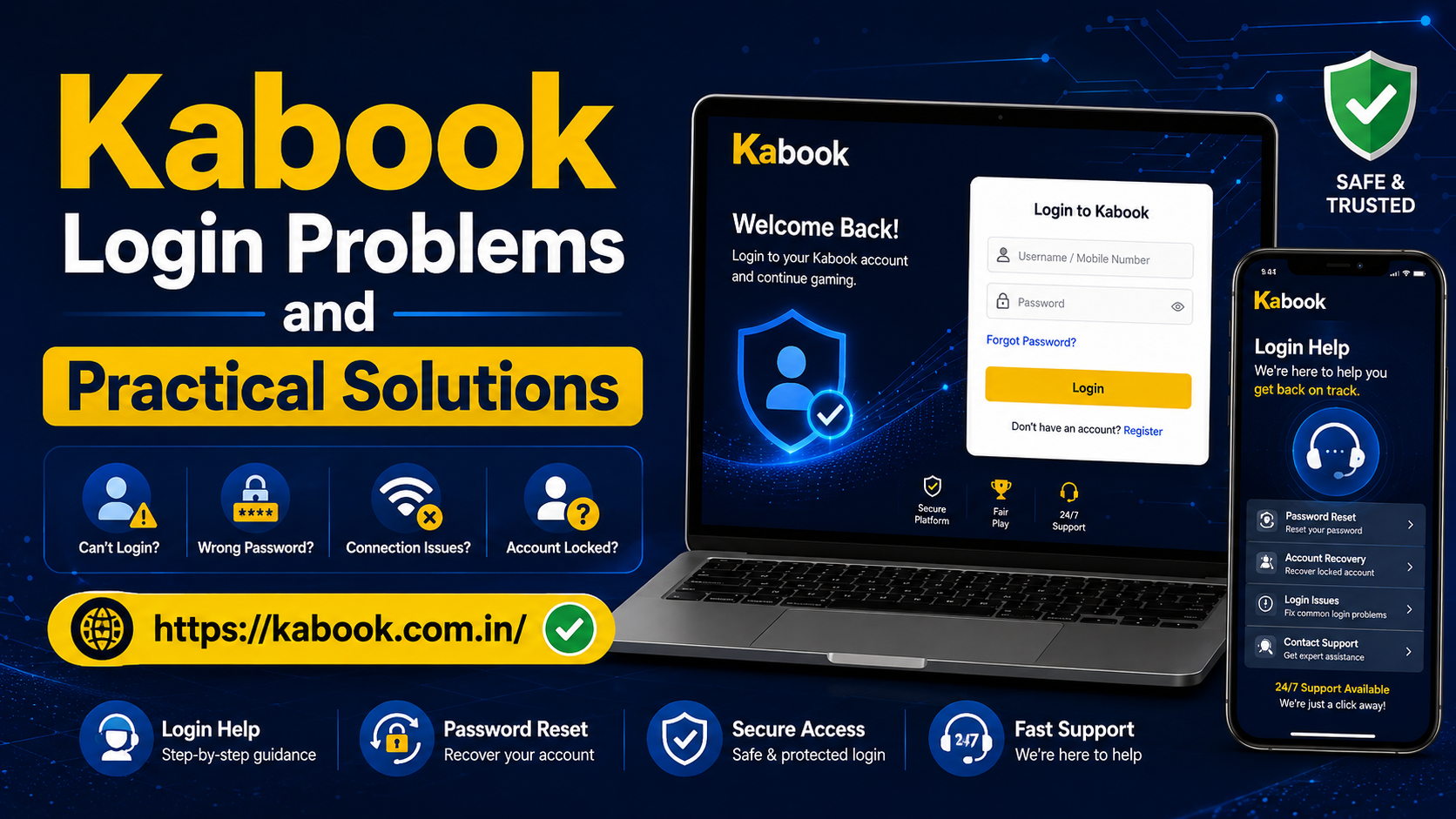
Kabook Login Problems and Practical Solutions
Kabook login problems can occur for many reasons, including an incorrect password, delayed OTP, unstable internet connection, outdated browser data, account restrictions, or access through the wrong website address. Although these issues can be frustrating, most of them can be resolved by following a careful troubleshooting process.
Users should avoid repeatedly entering random passwords or sharing account details with unknown support contacts. A better approach is to identify the exact error, check the website address, review the login information, and apply the appropriate solution.
This guide explains common Kabook login problems and practical solutions that can help users restore access safely. It also covers browser issues, password recovery, OTP errors, account locks, device problems, and important security precautions.
Common Reasons Kabook Login May Not Work
A login error does not always mean that the account has been permanently blocked. In many cases, the problem is caused by a simple typing mistake or a temporary technical issue.
Common causes include:
- Incorrect username or mobile number
- Wrong password
- Delayed or expired OTP
- Poor internet connection
- Browser cache problems
- Outdated application or browser
- Temporary website maintenance
- Multiple failed login attempts
- Account verification requirements
- Access through an incorrect domain
- Device security restrictions
- Disabled cookies or JavaScript
Before attempting advanced troubleshooting, users should identify whether the error appears before or after entering their login information.
Verify the Correct Kabook Website
The first step is to confirm that you are using the correct website address. Similar-looking domains may appear in search results, advertisements, forwarded messages, and social media posts.
For this guide, the reference domain is:
kabook.com.in
Read the complete address in the browser bar before entering your mobile number, username, password, OTP, or personal information.
Be cautious if the domain contains:
- Extra numbers
- Missing letters
- Additional hyphens
- Unusual spelling
- Unexpected domain extensions
- Long subdomains
- Repeated redirects
A familiar logo or page design does not prove that a website is genuine. Website layouts, colours, and branding can be copied easily.
When possible, type the domain manually or use a bookmark created after verifying the address.
Check Your Username or Mobile Number
Entering an incorrect username or mobile number is one of the most common Kabook problems.
Review the information carefully before submitting the login form. Make sure there are no spaces before or after the username. If the account uses a mobile number, confirm that all digits are correct.
Users should also check whether:
- The correct registered mobile number is being used
- The country code is required
- The username is case-sensitive
- An old number is being entered
- Autofill has inserted outdated details
- The browser has saved another user’s information
Instead of relying completely on autofill, delete the existing text and enter the details manually.
Resolve an Incorrect Password Error
A password error may appear because of a typing mistake, incorrect capitalisation, changed password, or outdated saved login information.
Start by checking the following:
- Confirm that Caps Lock is turned off.
- Check whether Num Lock affects the password.
- Use the password visibility icon to review the entry.
- Remove accidental spaces.
- Enter the password manually.
- Avoid copying hidden formatting from notes or messages.
- Check whether the password was recently changed.
Do not make repeated random attempts. Multiple failed logins may temporarily lock the account or trigger additional verification.
When the correct password is not available, use the official password recovery process instead.
Use the Password Reset Option
The password reset feature is generally the safest way to recover an account when the password has been forgotten.
A typical recovery process may include:
- Opening the verified login page
- Selecting “Forgot Password”
- Entering the registered mobile number or username
- Completing the required verification
- Entering the OTP received on the registered number
- Creating a new password
- Logging in again with the updated details
Choose a password that is difficult to guess and different from passwords used for email, banking, shopping, or social media accounts.
A strong password should ideally contain:
- Uppercase letters
- Lowercase letters
- Numbers
- Special characters
- At least 10 to 12 characters
Avoid using names, dates of birth, mobile numbers, simple sequences, or common terms.
Fix Kabook OTP Problems
OTP problems may prevent users from completing login verification or resetting a password. The OTP may arrive late, expire quickly, or fail to work.
Wait Before Requesting Another OTP
Mobile networks sometimes experience delays. Wait for a short period before requesting a second code. Repeated requests may cause several OTPs to arrive together, creating confusion.
Usually, only the most recent OTP remains valid.
Confirm Network Availability
Check whether the mobile phone has a stable network signal. Turn airplane mode on and off to refresh the connection if necessary.
Review Blocked Messages
Some devices automatically filter service messages as spam. Check the spam, blocked, or filtered message folder.
Verify the Registered Number
The OTP will normally be sent only to the number connected with the account. If the registered number is no longer active, an official account recovery process may be required.
Do Not Share the OTP
Never share a login or password-reset OTP with anyone. An OTP can allow another person to enter or modify the account.
Kabook Account Temporarily Locked
Several incorrect login attempts may trigger a temporary account lock. This security measure helps protect accounts from unauthorised access.
When the account is locked:
- Stop entering passwords repeatedly.
- Wait before trying again.
- Use the password reset option.
- Check for security notifications.
- Contact verified support when the lock continues.
Do not pay anyone claiming they can instantly unlock the account. Avoid unknown Telegram, WhatsApp, or social media contacts presenting themselves as account recovery agents.
Only use support details published on the verified website.
Clear Browser Cache and Cookies
Corrupted or outdated browser files can interfere with the Kabook login page. Clearing cache and cookies may solve loading errors, repeated redirects, blank screens, or buttons that do not respond.
Google Chrome
- Open Chrome settings.
- Select Privacy and Security.
- Choose Delete Browsing Data.
- Select Cookies and Cached Images and Files.
- Choose an appropriate time range.
- Delete the selected data.
- Restart the browser.
Users should note that clearing cookies may sign them out of other websites.
After restarting the browser, manually open the verified Kabook website and attempt the login again.
Try Incognito or Private Browsing Mode
Private browsing can help identify whether the problem is being caused by saved cookies, cached data, or browser extensions.
Open an incognito or private window and access the verified domain. If the login works there, the main browser profile may contain outdated data or a conflicting extension.
Users can then:
- Clear browser cache
- Remove problematic cookies
- Disable unnecessary extensions
- Reset saved login data
- Update the browser
Private browsing should be used for testing rather than as a replacement for proper device security.
Update the Browser or Application
An outdated browser may fail to load modern login features correctly. Security updates, JavaScript changes, and authentication systems may not work properly on older software.
Update browsers such as:
- Google Chrome
- Mozilla Firefox
- Microsoft Edge
- Apple Safari
Android users should also update Android System WebView because many mobile applications depend on it to display web-based login screens.
When using an application, download updates only through a verified source. Avoid installing APK files received from unknown messages, groups, or third-party pages.
Check the Internet Connection
An unstable internet connection can cause incomplete page loading, OTP delays, session timeouts, and failed login requests.
Try the following steps:
- Switch between Wi-Fi and mobile data.
- Restart the router.
- Turn airplane mode on and off.
- Move to an area with a stronger signal.
- Pause large downloads.
- Close applications using excessive bandwidth.
- Restart the device.
Avoid logging in through public Wi-Fi networks. Public networks may be insecure and can increase the risk of account information being intercepted.
Disable VPN or Proxy Temporarily
Some websites may restrict access from VPNs, proxy servers, or frequently changing IP addresses. A VPN may also route the connection through a region where access is unavailable.
Temporarily disconnect the VPN and reload the website using a normal internet connection.
However, users should not disable security tools permanently. Only make temporary changes for troubleshooting and restore preferred security settings afterward.
Enable Cookies and JavaScript
Most login systems require cookies to maintain the account session and JavaScript to process forms, OTP verification, or security checks.
When cookies or JavaScript are disabled, users may experience:
- Login pages that refresh repeatedly
- Buttons that do not work
- Blank sections
- Failed CAPTCHA verification
- Automatic logout
- Incomplete password recovery
Review browser privacy settings and allow essential cookies and JavaScript for the verified domain.
Do not enable all third-party tracking features unnecessarily.
Solve CAPTCHA or Verification Errors
CAPTCHA errors may occur because of a slow connection, blocked scripts, privacy extensions, or outdated browser files.
Practical solutions include:
- Refreshing the CAPTCHA
- Reloading the login page
- Disabling script-blocking extensions temporarily
- Clearing browser cache
- Trying another updated browser
- Checking the system date and time
- Switching internet connections
Never use third-party services to bypass CAPTCHA verification. CAPTCHA is designed to prevent automated and unauthorised login attempts.
Check Device Date and Time
Incorrect device date and time settings can cause authentication, certificate, OTP, and session errors.
Enable automatic date, time, and time-zone settings on the device.
On Android:
- Open Settings.
- Select System or General Management.
- Open Date and Time.
- Enable automatic date and time.
- Enable automatic time zone.
After updating the settings, restart the browser or application and try again.
Kabook Login Page Not Loading
When the entire login page fails to open, the problem may be caused by maintenance, server issues, DNS problems, or a local connection error.
Try these solutions:
- Refresh the page once.
- Check another website to confirm internet access.
- Restart the browser.
- Switch networks.
- Clear DNS cache.
- Try another device.
- Check for browser security warnings.
- Wait and attempt access later.
Avoid repeatedly refreshing the page within a few seconds because this may create additional connection errors.
Users should also avoid unofficial “alternative links” shared by unknown accounts during temporary downtime.
Account Logged Out Automatically
Automatic logout may happen when the account session expires, the internet connection changes, browser cookies are deleted, or the account is opened on another device.
To reduce repeated logout issues:
- Keep essential cookies enabled.
- Avoid switching networks during a session.
- Do not use the same account across several devices simultaneously.
- Update the browser.
- Check for unknown account activity.
- Change the password when unauthorised access is suspected.
Automatic logout can also be a security feature designed to protect inactive sessions.
Kabook Login Works on One Device but Not Another
When the login works on one device but fails on another, the account details are likely correct. The issue may relate to the device, browser, network, or security configuration.
Compare the following:
- Browser version
- Cookie settings
- JavaScript settings
- VPN status
- Internet connection
- Device date and time
- Installed security extensions
- Saved passwords
- Application version
Updating or resetting the affected browser usually resolves device-specific login errors.
Contact Kabook Support Safely
Contact verified support only after completing the basic troubleshooting steps.
Before requesting assistance, collect useful information such as:
- Username or registered mobile number
- Exact error message
- Date and time of the problem
- Device type
- Browser name
- Screenshot without sensitive details
- Steps already attempted
Never send:
- Passwords
- OTPs
- UPI PINs
- Card PINs
- Complete banking credentials
- Remote device access
- Unmasked identity documents through unknown channels
Support should not require secret credentials to investigate a standard login issue.
Protect Your Kabook Account
After resolving the login problem, take steps to improve account security.
Use these practices:
- Create a unique password.
- Do not share account details.
- Avoid public computers.
- Log out from shared devices.
- Keep the device updated.
- Install applications only from verified sources.
- Review recent account activity.
- Avoid unknown links.
- Never share OTPs.
- Update the password after suspicious activity.
Security should remain a priority even when the account appears to work normally.
Practical Kabook Login Troubleshooting Checklist
Use this checklist when access fails:
- Verify the correct Kabook domain.
- Confirm the username or mobile number.
- Check password spelling and capitalisation.
- Use the password reset option.
- Wait for the latest OTP.
- Check mobile network coverage.
- Clear browser cache and cookies.
- Try private browsing mode.
- Update the browser or application.
- Switch the internet connection.
- Disable VPN temporarily.
- Enable cookies and JavaScript.
- Correct device date and time.
- Stop repeated login attempts.
- Contact verified support when necessary.
Following these steps in order can help identify the problem without creating additional account restrictions.
Frequently Asked Questions
Why is my Kabook login not working?
The login may fail because of an incorrect password, wrong mobile number, expired OTP, browser cache issue, unstable internet connection, temporary account lock, or access through an incorrect domain.
How can I reset my Kabook password?
Open the verified Kabook login page and select the password recovery option. Enter the registered details, complete OTP verification, and create a new unique password.
Why am I not receiving the Kabook login OTP?
OTP delivery may be delayed because of mobile network problems, blocked messages, repeated OTP requests, or an incorrect registered number. Wait briefly and use only the most recently received OTP.
What should I do when my Kabook account is locked?
Stop repeated login attempts, wait for the temporary restriction to end, and use the official password reset option. Contact verified support when access is not restored.
Can clearing cache solve Kabook login problems?
Yes. Clearing browser cache and cookies can resolve repeated redirects, incomplete loading, unresponsive buttons, and outdated login sessions.
Is it safe to share my OTP with Kabook support?
No. Passwords, OTPs, PINs, and banking credentials should never be shared with support representatives or unknown contacts.
Why does Kabook log me out automatically?
Automatic logout may occur because the session has expired, cookies are blocked, the network has changed, the account is active on another device, or the platform has detected unusual activity.
Should I use an alternative Kabook link when the website is unavailable?
Avoid links shared by unknown people or groups. Wait for the verified website to become available and confirm the complete domain before logging in.
Conclusion
Kabook login problems and practical solutions should be approached carefully rather than through repeated password attempts or unknown recovery services. Most access issues can be resolved by verifying the website address, checking login details, resetting the password, waiting for the correct OTP, clearing browser data, updating software, or changing the internet connection.
Users should protect their accounts by using a unique password, avoiding public networks, refusing to share OTPs, and contacting only verified support channels.
A structured troubleshooting process not only helps restore account access but also reduces the risk of phishing, account theft, unsafe downloads, and misuse of personal information.